Contacts and Data Hygiene
How to Organize Contacts With Groups and Tags in OutreachBox
Updated June 15, 2026
Quick answer: In Leads → Contacts, click Create Group, give it a name, description, and color, then add contacts to it via bulk actions or by editing individual contacts. Use the Groups sidebar to filter, and target entire groups when building campaigns.
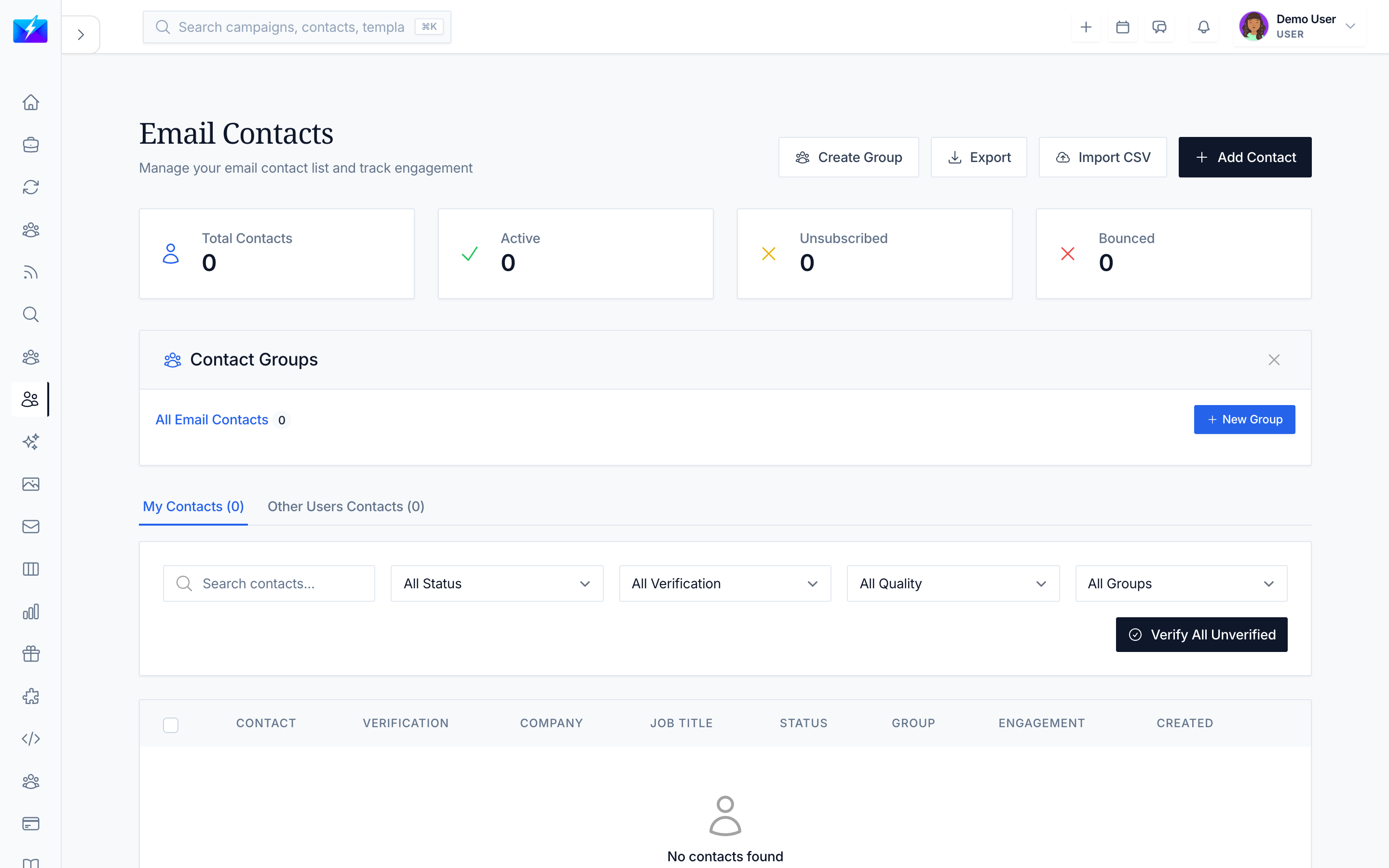
Groups and tags turn a flat contact list into segments you can target precisely — by industry, tier, campaign, or any logic that fits your strategy.
How to create a group
- In Leads → Contacts, click Create Group.
- Enter the details:
- Name — e.g., "VIP", "Tier-1", "2025-prospects".
- Description — optional.
- Color — for quick visual identification.
- Click Create.
How to add contacts to groups
- Bulk — select contacts with checkboxes and use bulk actions to add them to a group.
- Individual — edit a contact and assign one or more groups.
How to use groups
- Filter — click a group in the Groups sidebar to view only its contacts; the group shows a contact count.
- Target campaigns — select an entire group when choosing campaign recipients. See How to Run a Cold Email Campaign.
- Manage — edit or delete groups (deleting a group keeps the contacts; it just removes the grouping).
Best practices
- Use clear, consistent naming so groups stay understandable as they grow.
- Segment by meaningful attributes — industry, seniority, stage, or campaign.
- Combine groups with verification status to target only clean, relevant contacts.
- Review and prune groups periodically.
Frequently Asked Questions
What's the difference between groups and tags?
In OutreachBox, groups/tags both organize contacts into segments you can filter and target. Use them to slice your list by any attribute that matters to your outreach.If I delete a group, do I lose the contacts?
No. Deleting a group only removes the grouping; the contacts themselves remain in your list.Can I target a whole group in a campaign?
Yes — select the group when choosing recipients, and all contacts in it are added to the campaign.Related articles
- How to Manage Your Contacts
- How to Personalize Cold Emails at Scale
- How to Build a Targeted Prospect List
Segment once with groups, then target precisely in every campaign.
Need more help?
Browse our knowledge base for more guides and tutorials