Contacts and Data Hygiene
How to Import Contacts From a CSV File in OutreachBox
Updated June 15, 2026
Quick answer: In Leads → Contacts, click Import CSV, upload a UTF-8 CSV with columns for email, first name, last name, company, job title, and tags, map the columns to contact fields, review the preview, then click Import. Verify the imported emails before sending any campaign.
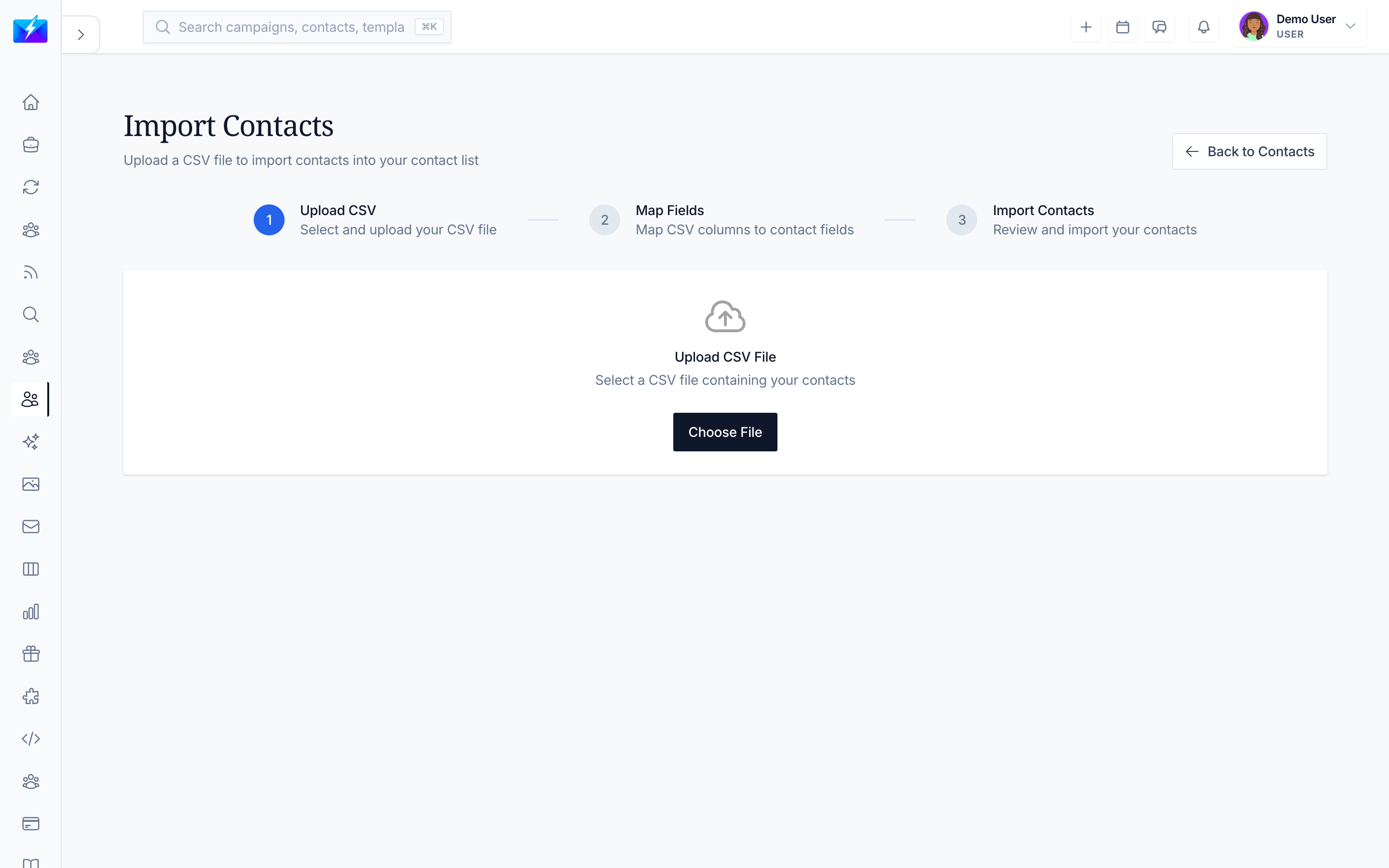
Importing from CSV is the fastest way to bring an existing list into OutreachBox. Get the format right and the import is painless.
CSV format
Prepare a CSV with these columns:
| Column | Required | Example |
|---|---|---|
| Yes | [email protected] | |
| First Name | No | Jane |
| Last Name | No | Doe |
| Company | No | Acme Inc. |
| Job Title | No | Marketing Director |
| Tags | No | vip, 2025-prospects |
Save the file as UTF-8.
How to import
- Navigate to Leads → Contacts.
- Click Import CSV.
- Select your CSV file.
- Map columns to the matching contact fields.
- Review the import preview.
- Click Import to complete, then check the results for any errors.
After importing
- Verify the imported emails before campaigns. See How to Verify Email Addresses in Bulk.
- Group the new contacts for targeting. See How to Organize Contacts With Groups and Tags.
Best practices
- Validate and de-duplicate your CSV before importing.
- Use UTF-8 encoding to avoid character issues.
- Include as many fields as possible (company, title) to enable personalization.
- Always verify imported lists before sending.
Frequently Asked Questions
Why is my import failing?
Confirm the CSV format matches the expected columns, email addresses are valid, the file is UTF-8 encoded, and the file size is within limits. Review the error messages for specifics.What's the minimum required column?
Email is required. The other fields (name, company, job title, tags) are optional but recommended for personalization and segmentation.Do imported contacts need verification?
Yes — verify them before your first campaign so you don't email invalid addresses and harm deliverability.Related articles
- How to Manage Your Contacts
- How to Verify Email Addresses in Bulk
- How to Organize Contacts With Groups and Tags
Clean CSV in, verified list out — get the format right and importing is effortless.
Need more help?
Browse our knowledge base for more guides and tutorials