Contacts and Data Hygiene
How to Manage Your Contacts in OutreachBox
Updated June 15, 2026
Quick answer: Go to Leads → Contacts to add, edit, verify, group, and delete contacts. Add contacts manually or import from CSV, organize them with groups and tags, verify their emails, and track engagement status (active, unsubscribed, bounced). Use bulk actions to manage many contacts at once.
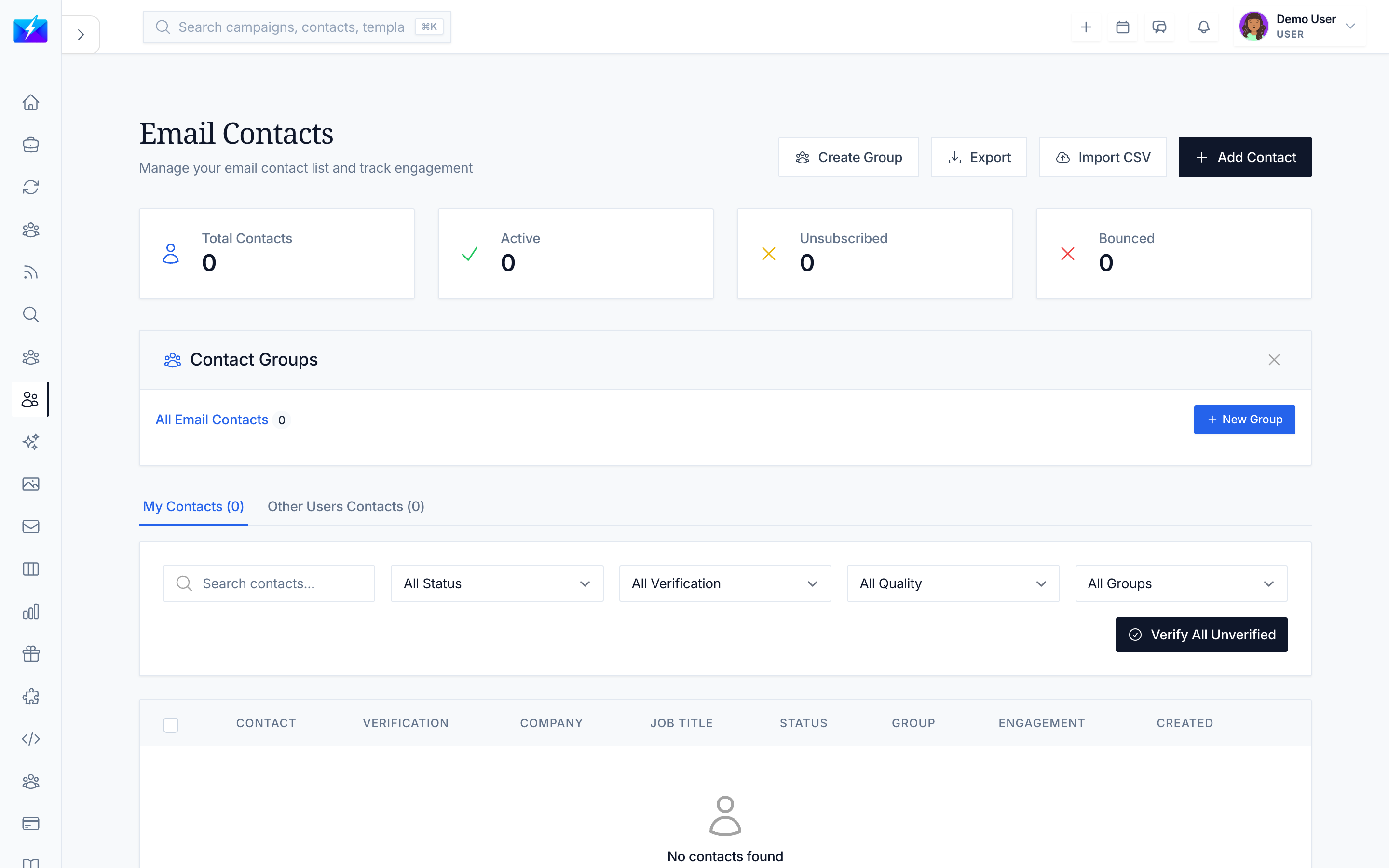
Your contacts are the audience for every campaign. Keeping them organized, verified, and current is essential to outreach that performs.
How to access and view contacts
Navigate to Leads → Contacts. Two tabs help you see the right set:
- My Contacts — contacts you created, saved, or imported.
- Other Users' Contacts — contacts saved by teammates (shared database).
Each contact includes email, name, company, job title, status, groups/tags, verification status, who saved it, and the created date.
How to create contacts
- Manually — click Add Contact, fill in at least the email, plus name, company, job title, and groups, then save.
- From CSV — import a file and map columns. See How to Import Contacts From a CSV File.
How to edit, delete, and use bulk actions
- Edit — update any contact's details or groups.
- Delete — remove a single contact, or select many and Delete Selected.
- Bulk actions — verify, add to group, export, or delete selected contacts at once.
Contact status and usage
Contacts carry a status — Active, Unsubscribed, or Bounced — and your organization's usage counters (email/phone reveals, contacts, verifications) appear at the top with limits and progress bars.
Best practices
- Verify emails before sending campaigns. See How to Verify Email Addresses in Bulk.
- Organize contacts into meaningful groups. See How to Organize Contacts With Groups and Tags.
- Keep records current and remove bounced and unsubscribed contacts.
- Monitor usage counters so you stay within plan limits.
Frequently Asked Questions
How do I add contacts to a campaign?
Select contacts (individually, by group, or by filter) when creating or editing a campaign. See How to Run a Cold Email Campaign.What do the contact statuses mean?
Active means engaged and emailable, Unsubscribed means they opted out, and Bounced means the address failed. Remove unsubscribed and bounced contacts to protect deliverability.Can teammates see my contacts?
Shared contacts appear under the Other Users' Contacts tab, supporting team collaboration across your organization.Related articles
- How to Import Contacts From a CSV File
- How to Organize Contacts With Groups and Tags
- How to Verify Email Addresses in Bulk
Organized, verified, current contacts are the quiet engine behind every successful campaign.
Need more help?
Browse our knowledge base for more guides and tutorials