Contacts and Data Hygiene
How to Verify Email Addresses in Bulk With OutreachBox
Updated June 15, 2026
Quick answer: Go to Email Verification (or select contacts in Contacts), upload or choose your list, pick a method — SMTP (Standard), Deep Check, or Ping (Quick) — and start the job. OutreachBox returns a quality score (Excellent, Good, Risky, Bad) for each address so you can remove the bad ones before sending.
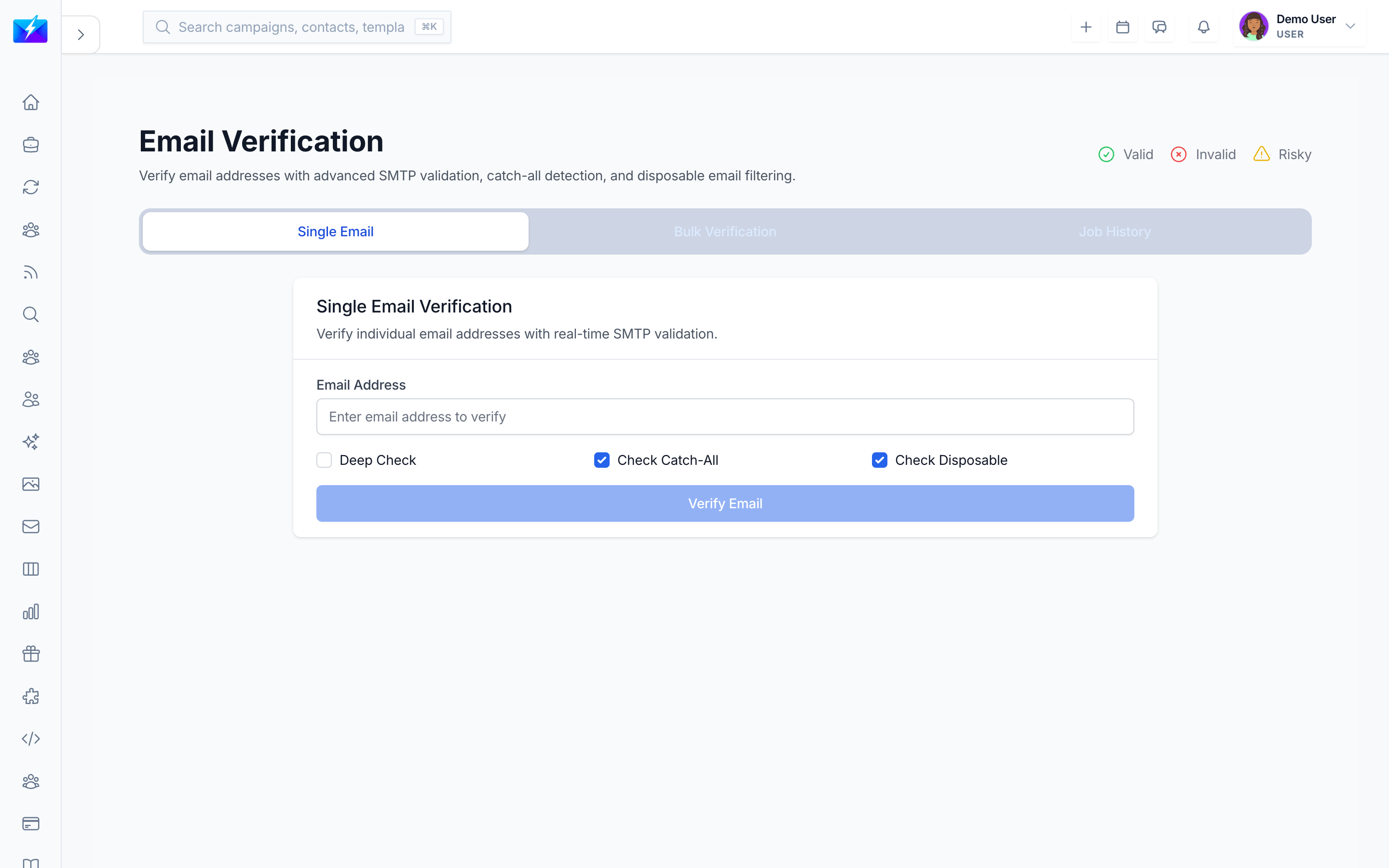
Verifying emails before you send protects your sender reputation and keeps bounce rates low. OutreachBox supports single and bulk verification with multiple methods.
How to verify emails
Single verification
- Go to Email Verification.
- Enter an email address.
- Choose a method and click Verify to see the result.
Bulk verification
- Go to Email Verification and start a New Verification Job (or select contacts and Verify Selected).
- Upload a CSV or choose your contacts.
- Select a verification method.
- Start the job and monitor progress.
- Download or review the results.
Verification methods
| Method | Speed | Accuracy | Best for |
|---|---|---|---|
| SMTP (Standard) | Fast | Good | Everyday verification |
| Deep Check | Slower | Highest | Important lists; catch-all, disposable, role detection |
| Ping (Quick) | Fastest | Lower | Quick passes on large lists |
Reading the results
Each address gets a quality score and details:
- Excellent / Good — safe to send.
- Risky — send with caution.
- Bad — remove before sending.
- Details include disposable, role-based, and free-provider flags, catch-all detection, and the verification reason.
Best practices
- Verify before every campaign, and re-verify lists periodically.
- Use Deep Check for important or older lists.
- Remove Bad and most Risky addresses to protect deliverability.
- Watch your verification usage against your plan limits.
Frequently Asked Questions
Which verification method should I use?
Use SMTP (Standard) for routine checks, Deep Check for important lists where accuracy matters most, and Ping (Quick) for fast passes on very large lists.What do the quality scores mean?
Excellent and Good are safe to send; Risky should be treated cautiously; Bad addresses are invalid or problematic and should be removed.Why is verification failing?
Check the email format, confirm you haven't exceeded your verification limit, review error messages, and try a different method.Related articles
Verify before you send — clean lists are the cheapest deliverability upgrade you can make.
Need more help?
Browse our knowledge base for more guides and tutorials