Getting Started
How to Create an OutreachBox Account and Get Started
Updated June 15, 2026
Quick answer: Go to the OutreachBox registration page, enter your business email, a strong password, your name, and your organization name, then click Register. You're logged in instantly and can connect an email account, import contacts, and launch your first campaign within minutes.
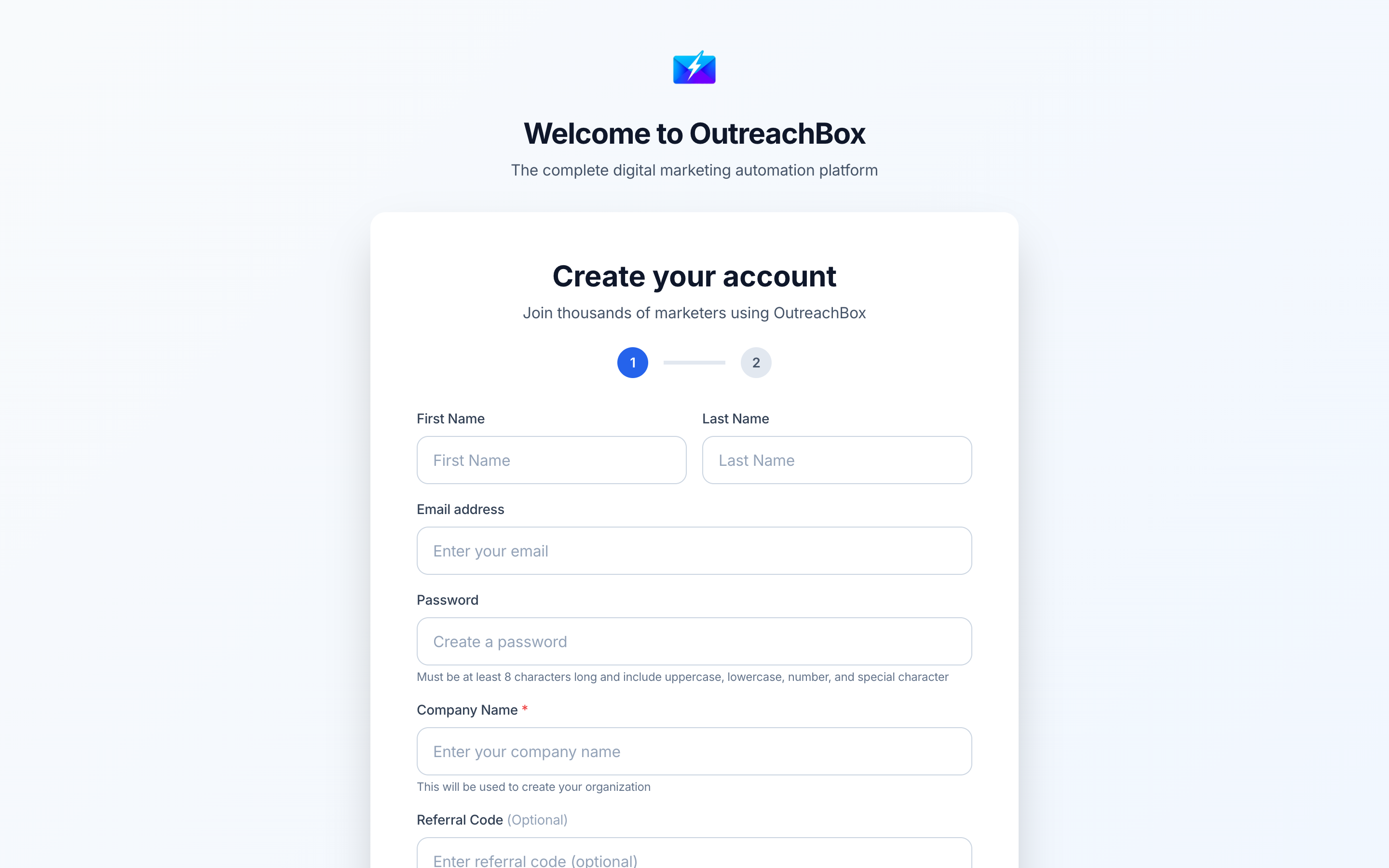
Creating an OutreachBox account takes less than two minutes and gives you immediate access to lead search, cold email, SEO projects, content generation, and AI agents — all in one platform. This guide walks you through registration, first login, and the five things to do right after you sign up.
How to register for OutreachBox
- Navigate to the registration page at
/register. - Fill in the required fields:
- Email address — use your business email (not a personal Gmail) for better deliverability and team setup.
- Password — create a strong password with uppercase, lowercase, numbers, and a symbol.
- First name and Last name.
- Organization name — your company or brand. This becomes your workspace.
- Click Register.
- You'll be logged in automatically and taken to your dashboard.
How to log in
- Go to the login page at
/login. - Enter your email and password.
- Click Login to land on your dashboard.
What to do right after you sign up
Complete these five steps to get value from OutreachBox on day one:
- Complete your profile and organization settings so emails and reports are correctly branded. See How to Configure Your Account and Organization Settings.
- Connect an email account for sending campaigns. See How to Connect an Email Account to OutreachBox.
- Start email warmup if the account is new, to protect deliverability. See How to Warm Up an Email Account.
- Create your first project to organize a website or campaign. See How to Create an SEO Project.
- Find and import contacts to email. See How to Find B2B Leads With Leads Search.
Best practices
- Use a business email address tied to a domain you control.
- Choose a clear organization name — it appears across reports and team invites.
- Set up your profile and timezone before scheduling campaigns or content.
- Invite teammates early so everyone works from the same data.
Frequently Asked Questions
Is OutreachBox free to start?
Yes. You can create an account and explore the platform on the Free plan, which includes basic features and limited usage. Upgrade any time from the Subscriptions page when you need more reveals, contacts, or verifications.What information do I need to sign up?
Just your name, a business email, a password, and your organization name. No credit card is required to create an account.Can I change my organization name later?
Yes. You can update your organization details at any time from Settings.How do I add my team after signing up?
Open Team Members, click Invite Member, enter their email, and assign a role. See How to Manage Team Members, Roles, and Permissions.Related articles
- How to Use the OutreachBox Dashboard
- How to Configure Your Account and Organization Settings
- How to Reset Your Password and Keep Your Account Secure
Sign up once, then connect email, import contacts, and launch outreach — all from a single workspace.
Need more help?
Browse our knowledge base for more guides and tutorials