SEO With OutreachBox
How to Create an SEO Project in OutreachBox
Updated June 15, 2026
Quick answer: Go to Projects, click New Project, then enter your project name, website URL, description, status, priority, and focus keywords. Enable Auto Start Crawl to begin analyzing the site immediately, and click Create Project. The project becomes the hub for keywords, competitors, crawled data, tasks, and analytics.
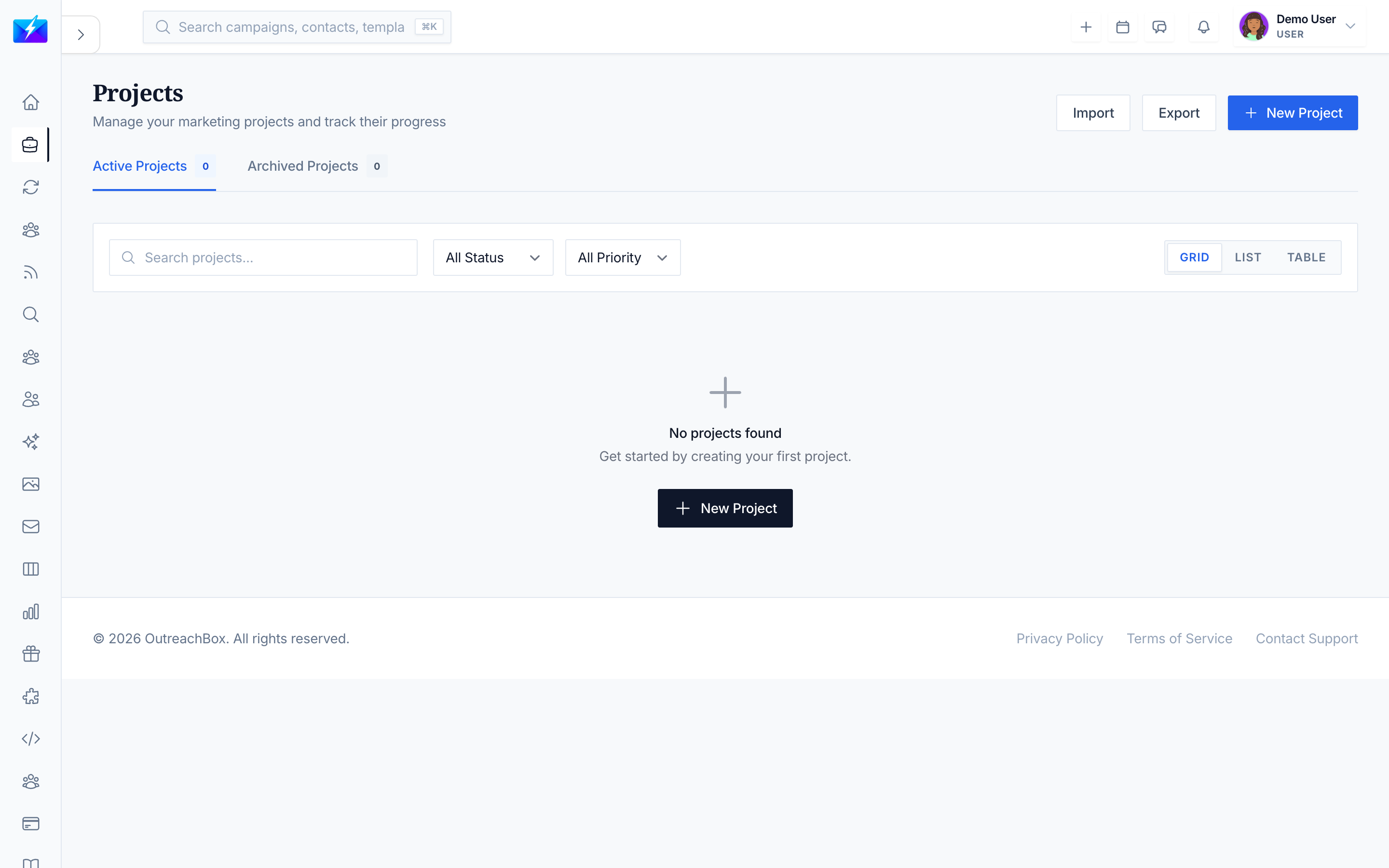
Projects are how OutreachBox organizes your marketing and SEO work. Each project represents one website or initiative and brings its keywords, competitors, crawl data, content, and analytics together in one place.
How to create a project
- Navigate to Projects from the main menu.
- Click New Project.
- Fill in the details:
- Name — e.g., "Company Website".
- Description — a short summary of the initiative.
- URL — the website you want to analyze and rank.
- Status — Planning, Active, On Hold, or Completed.
- Priority — Low, Medium, High, or Urgent.
- Focus keywords — the terms you want to rank for.
- Auto Start Crawl — enable to crawl the site as soon as the project is created.
- Click Create Project.
What's inside a project
Open any project to find tabs for everything you need:
| Tab | What it's for |
|---|---|
| Overview | Summary, key metrics, recent activity, timeline |
| Analytics | Traffic, engagement, and conversion data |
| Keywords | Your focus keywords and their performance |
| LLM Keywords | AI-generated keyword and content suggestions |
| Competitors | Competing sites and competitive analysis |
| Crawled Data | Page content, structure, and SEO data |
| Tasks | Project to-dos with assignments and due dates |
| Notes | Meeting notes and shared information |
| Team | Members, roles, and collaboration |
How to manage projects
- Switch views — toggle between Grid, List, and Table views.
- Edit — update details from the project detail page.
- Duplicate — copy a project (adds "(Copy)" to the name).
- Archive — deleting a project archives it; restore it later from Archived Projects.
- Search and filter — find projects by name, URL, status, or priority.
- Import/Export — export projects to CSV; import from a JSON file matching the project structure.
Best practices
- Use descriptive names so projects are easy to identify.
- Add focus keywords at creation so the crawler and content tools have context.
- Set status and priority honestly so your project list reflects real work.
- Archive completed projects to keep your workspace clean.
Frequently Asked Questions
Why won't my project create?
Confirm all required fields are filled, the URL is valid, you have permission to create projects, and you haven't hit your plan's project limit.What does "Auto Start Crawl" do?
It automatically starts crawling your site when the project is created, so the Crawled Data tab populates without a manual step. See How to Run a Website SEO Audit With the Crawler.Can I restore a project I deleted?
Yes. Deleting archives the project. Open the Archived Projects section, click Show Archived, and Restore it.Related articles
- How to Do SEO With OutreachBox
- How to Do Keyword Research With OutreachBox
- How to Run a Website SEO Audit With the Crawler
A well-set-up project is the foundation for repeatable, measurable SEO.
Need more help?
Browse our knowledge base for more guides and tutorials