Collaboration and Team
How to Manage Team Members, Roles, and Permissions in OutreachBox
Updated June 15, 2026
Quick answer: Open Team Members (requires the TEAMVIEW permission), click Invite Member, enter their email, and assign a role — Admin, Manager, Member, or Viewer. They receive an invitation email. Edit roles and permissions any time, and remove members who no longer need access.
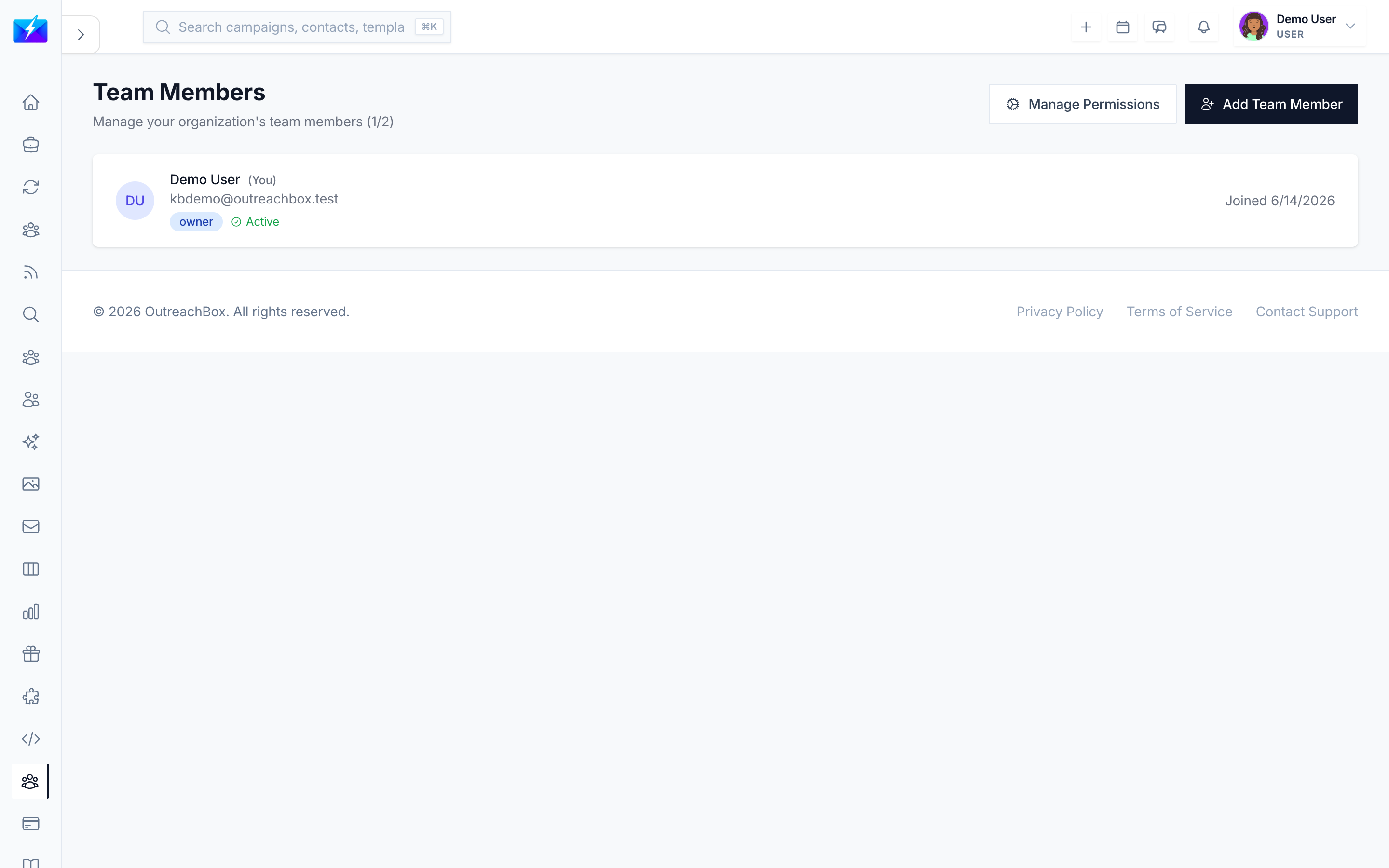
Team Members lets you collaborate with proper access control — so everyone has the access they need and nothing they don't.
How to invite a team member
- Navigate to Team Members (requires TEAMVIEW permission).
- Click Invite Member.
- Enter their email address.
- Select a role.
- Send the invitation — they'll receive an email to join.
Roles at a glance
| Role | Access |
|---|---|
| Admin | Full access |
| Manager | Management access |
| Member | Standard access |
| Viewer | Read-only access |
Permissions
Roles map to granular permissions, such as:
PROJECTCREATECAMPAIGNCREATECONTACTVIEWANALYTICSVIEWTEAMVIEWINTEGRATIONVIEW
How to edit or remove members
- Edit — update a member's role or permissions and save.
- Remove — remove a member to revoke their access.
Best practices
- Assign the least-privileged role that lets someone do their job.
- Limit the number of Admins.
- Review permissions periodically and remove inactive members.
- Document who has access to what.
Frequently Asked Questions
Who can manage team members?
Users with the TEAM_VIEW permission (typically Admins and Managers). Roles control what each member can see and do.What role should I give a new teammate?
Start with the least-privileged role that fits their job — Viewer for read-only, Member for standard work — and elevate only if needed.How do I revoke access?
Remove the member from Team Members, or change their role to reduce permissions.Related articles
Give people the right access with roles, review it regularly, and keep your workspace secure.
Need more help?
Browse our knowledge base for more guides and tutorials