Getting Started
How to Manage Notifications in OutreachBox
Updated June 15, 2026
Quick answer: Click the bell icon in the header to view notifications, mark them read, and clear your unread count. Open Settings to choose which notification types you receive in-app and by email, and how often — so you stay informed about campaigns, contacts, and system alerts without being overwhelmed.
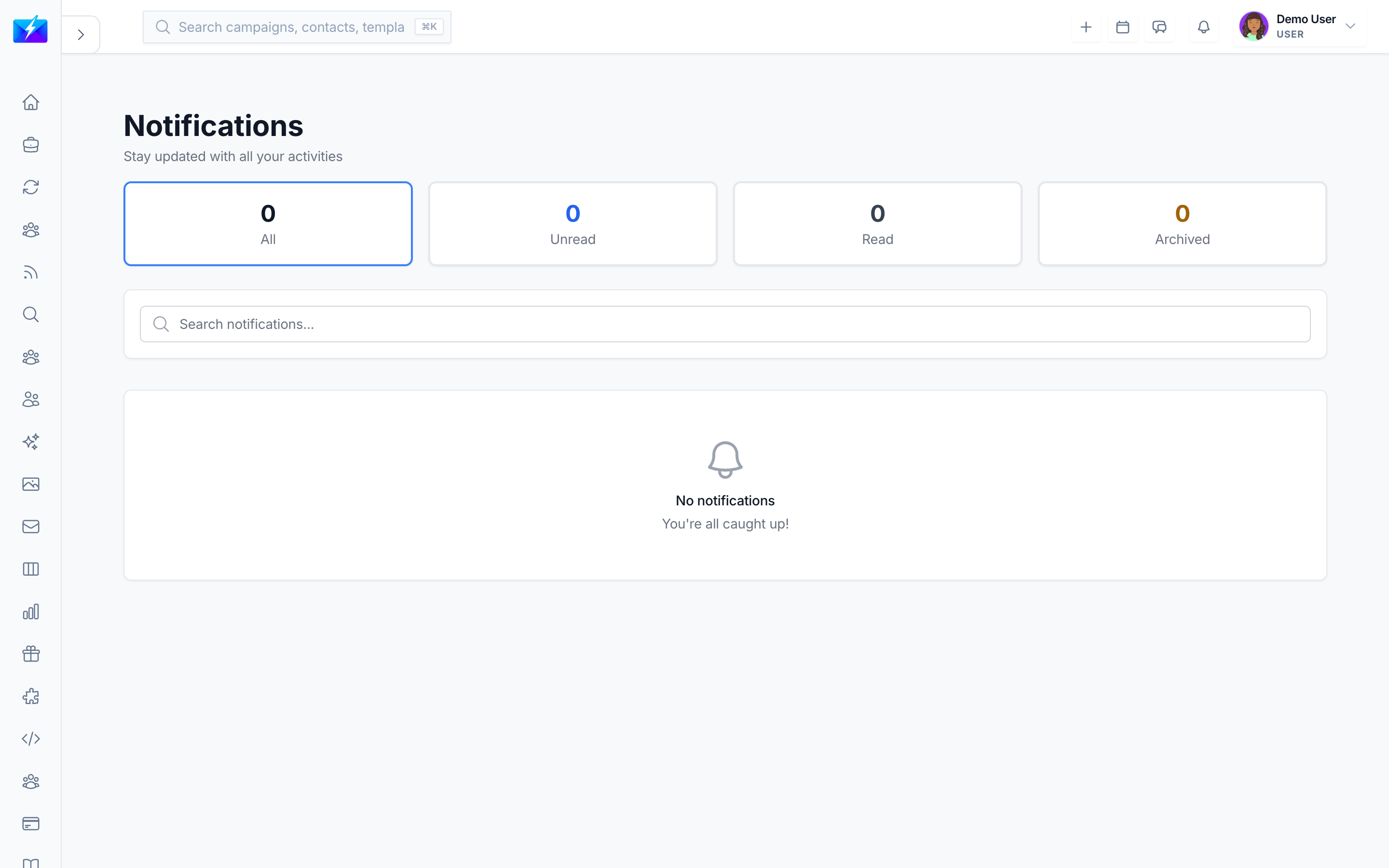
Notifications keep you on top of what matters: launched campaigns, verification results, system alerts, and team changes. This guide shows how to view, manage, and fine-tune them.
Notification types
- Campaign notifications — launched, completed, errors, and performance alerts.
- Contact notifications — new contacts, status changes, and verification results.
- System notifications — updates, maintenance, and security alerts.
- Team notifications — member updates, permission changes, and collaboration activity.
How to view and read notifications
- Click the bell icon in the header (it shows your unread count).
- Browse the notification list.
- Click a notification to read it — it's marked as read automatically.
- Use Mark all as read to clear the unread badge.
How to configure notification preferences
- Open Settings.
- Go to notification preferences.
- Enable or disable each notification type (campaign, contact, system, team).
- Set your email frequency — real-time, daily digest, weekly summary, or off.
- Save your preferences.
Best practices
- Keep critical alerts (errors, security, bounces) enabled.
- Use a daily digest for low-priority updates to reduce noise.
- Review notification history regularly so nothing important slips by.
Frequently Asked Questions
How do I stop getting too many emails?
Switch your email frequency to a daily digest or weekly summary in Settings, and disable notification types you don't need.Where can I see past notifications?
Open the notifications panel from the bell icon to review your notification history.Will I be alerted if a campaign fails?
Yes — campaign error and performance alerts notify you so you can act quickly. Keep these enabled.Related articles
Tune your notifications once so you catch the important events and ignore the noise.
Need more help?
Browse our knowledge base for more guides and tutorials