Cold Email and Outreach
How to Connect an Email Account to OutreachBox
Updated June 15, 2026
Quick answer: Go to Email → Accounts, click Add Account, choose your provider (Gmail, Outlook, or custom IMAP/SMTP), enter your credentials or app password and server settings, configure the account name and sync preferences, then click Connect. OutreachBox verifies the connection so you can send campaigns and use the unified inbox.
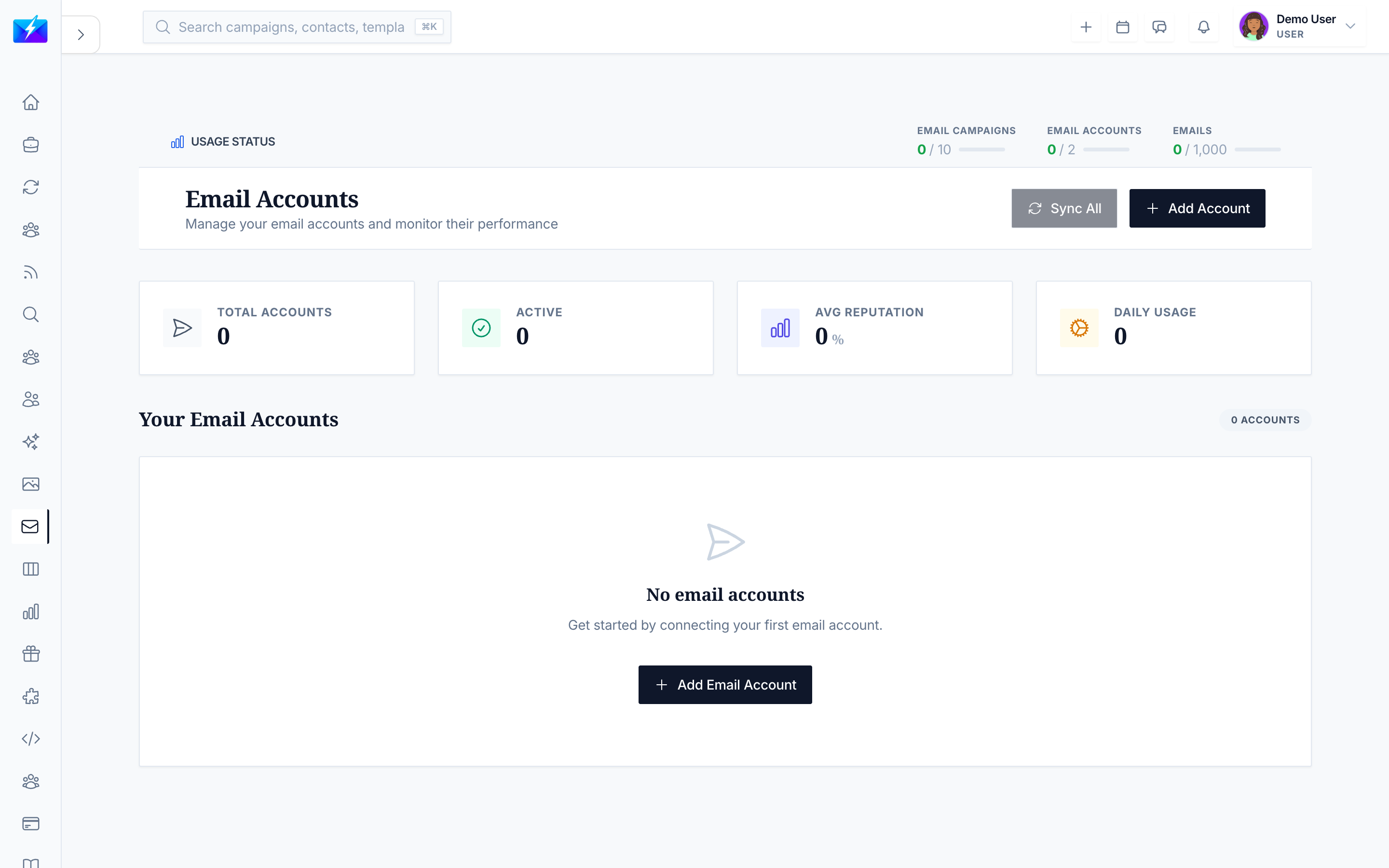
Connecting an email account is what lets OutreachBox send campaigns, run warmup, and sync your inbox. You can connect multiple accounts and manage them all in one place.
How to connect an account
- Navigate to Email → Accounts.
- Click Add Account.
- Select your provider:
- Gmail
- Outlook
- Custom IMAP/SMTP
- Enter your credentials:
- Email address
- Password or app password (Gmail typically requires an app password)
- Server settings (for custom IMAP/SMTP)
- Configure settings — account name, default sending account, and sync preferences.
- Click Connect.
OutreachBox verifies the account on connection and may send a test email.
How to manage connected accounts
The account list shows each account's name, address, provider, and status:
| Status | Meaning |
|---|---|
| Connected | Active and ready |
| Syncing | Currently syncing |
| Error | Connection issue — re-verify |
| Disconnected | Not connected |
You can edit account settings and sync preferences, or disconnect an account (associated data may be retained).
Best practices
- Use an app password for Gmail rather than your main password.
- Connect the account before warmup and campaigns, and warm up new accounts first. See How to Warm Up an Email Account.
- Keep credentials current — expired passwords cause sync errors.
Frequently Asked Questions
My account won't connect — what's wrong?
Verify your credentials, use an app password for Gmail, double-check custom IMAP/SMTP server settings, and confirm a firewall or network isn't blocking the connection.Can I connect more than one email account?
Yes. Connect multiple accounts and manage them together, including a unified inbox across all of them. See How to Use the Unified Email Inbox.Do I need to warm up a newly connected account?
If the account is new or hasn't sent much, yes — warm it up to build sender reputation before running campaigns.Related articles
Connect your sending account first — it's the foundation for warmup, campaigns, and your inbox.
Need more help?
Browse our knowledge base for more guides and tutorials