Getting Started
How to Configure Your Account and Organization Settings in OutreachBox
Updated June 15, 2026
Quick answer: Open Settings from the user menu to update your profile, organization details, email and notification preferences, security options, API keys, integrations, and display settings like timezone and theme. Configuring these correctly up front keeps your campaigns, reports, and team running smoothly.
Your settings control how OutreachBox behaves for you and your whole organization. This guide covers each section and what to set before you start sending campaigns.
How to access settings
Click your avatar or Settings in the main navigation.
Profile settings
Set your personal information:
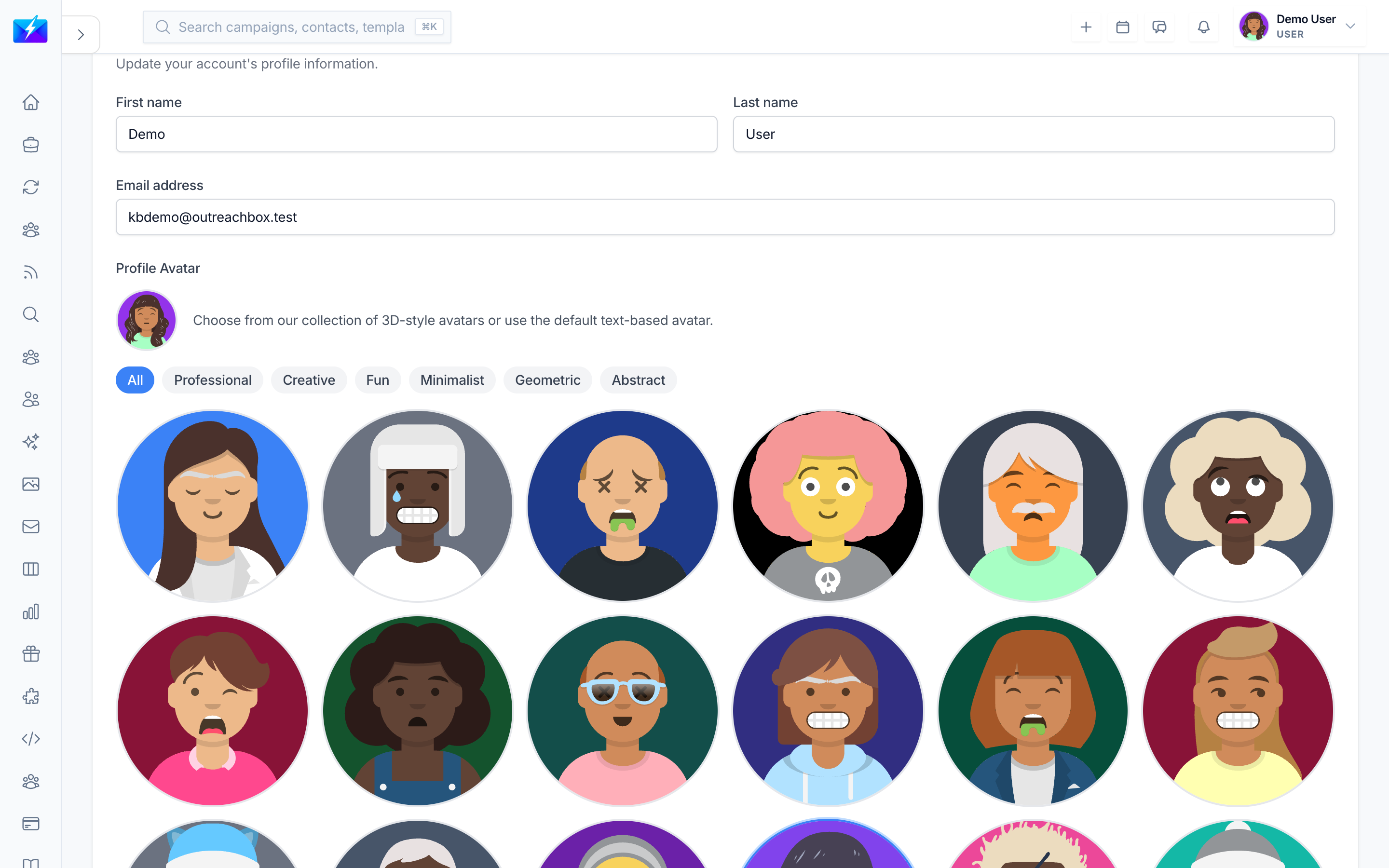
- Update First name, Last name, Email, and optional Phone.
- Upload an avatar.
- Save changes.
Organization settings
Define your workspace details — Name, Domain, Industry, and Size — and manage members and permissions. Your organization domain matters for sender identity and team setup.
Email and notification preferences
- Email notifications — choose which updates you receive: campaign updates, contact updates, system alerts, and weekly reports.
- Email frequency — real-time, daily digest, weekly summary, or disabled.
- In-app notifications — toggle types and sounds. See How to Manage Notifications.
Security settings
- Change your password and review password requirements.
- Manage active sessions and log out of other devices.
- Enable two-factor authentication if available.
- Generate, view, and revoke API keys for programmatic access.
Display and data preferences
Set your timezone, date/time format, language, and theme. Timezone is especially important — it controls when scheduled campaigns and content actually send.
Best practices
- Set your timezone before scheduling any campaigns or content jobs.
- Keep notification preferences tuned to avoid alert overload while not missing critical alerts.
- Rotate API keys periodically and revoke any you no longer use.
- Keep your organization domain and details current for accurate sender identity.
Frequently Asked Questions
Why aren't my settings saving?
Check that all required fields are filled, that you have permission to edit organization settings, then refresh the page or clear your cache and try again.Where do I manage integrations?
Connected services live under Integrations. See How to Connect Integrations.How do I change my timezone?
Open Settings → Display settings and select your timezone. All scheduled sends use this value.Related articles
- How to Reset Your Password and Keep Your Account Secure
- How to Manage Team Members, Roles, and Permissions
- How to Connect Integrations
Configure settings once so your campaigns, reports, and team all behave the way you expect.
Need more help?
Browse our knowledge base for more guides and tutorials