Cold Email and Outreach
How to Create Reusable Email Templates in OutreachBox
Updated June 15, 2026
Quick answer: Go to Email → Templates, click New Template, add a name, subject, and category, then design the body in the HTML or text editor using personalization variables like {{firstName}}. Save it, and reuse it in any campaign so you don't rewrite the same email twice.
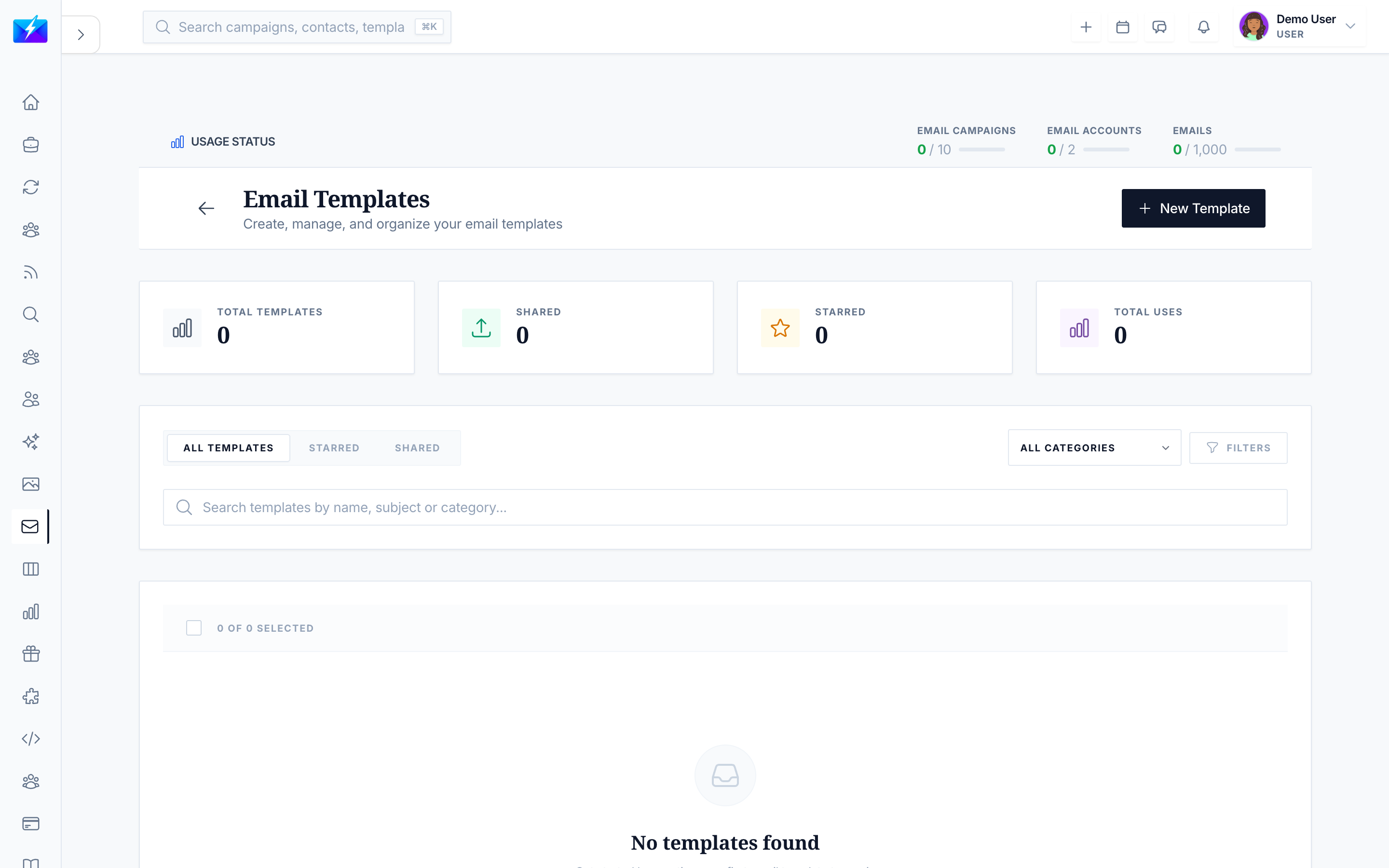
Templates save time and keep your messaging consistent. Build once, then drop them into campaigns with variables that personalize each send automatically.
How to create a template
- Navigate to Email → Templates.
- Click New Template.
- Enter the details:
- Name — for finding it later.
- Subject — the email subject line.
- Category — optional grouping (welcome, follow-up, promotional, etc.).
- Description — optional notes.
- Design the content:
- HTML editor — rich formatting, images, links.
- Text editor — a plain-text version.
- Variables — insert placeholders like
{{firstName}}.
- Preview, then click Save.
Personalization variables
Use variables so each recipient gets a personalized email:
| Variable | Inserts |
|---|---|
{{firstName}} | Contact's first name |
{{lastName}} | Contact's last name |
{{email}} | Contact's email |
{{company}} | Company name |
{{jobTitle}} | Job title |
How to use templates in campaigns
- Create or edit a campaign.
- Click Use Template and select your template.
- Variables auto-populate from contact data.
- Customize as needed, then save.
Best practices
- Build templates for your repeatable email types (welcome, follow-up, outreach).
- Always use variables — personalized emails outperform generic ones.
- Test with sample data and preview on desktop and mobile before using.
- Add clear descriptions and categories so templates are easy to find.
Frequently Asked Questions
Why aren't my variables working?
Check the variable syntax (e.g.,{{firstName}}), confirm the names match supported fields, and ensure the contact has data in those fields. Test with sample data.
Can I have both HTML and plain-text versions?
Yes. The editor supports an HTML version and a plain-text version, which helps with deliverability and accessibility.What happens to campaigns if I delete a template?
Templates used in campaigns may still be referenced. Review dependent campaigns before deleting a template.Related articles
- How to Run a Cold Email Campaign
- How to Personalize Cold Emails at Scale
- How to Use the Unified Email Inbox
Design your best emails once, then personalize and reuse them across every campaign.
Need more help?
Browse our knowledge base for more guides and tutorials