Cold Email and Outreach
How to Use the Unified Email Inbox in OutreachBox
Updated June 15, 2026
Quick answer: Go to Email → Inbox to see messages from all your connected accounts in one place. Read, reply, forward, star, archive, and search emails; compose new messages; manage drafts; and switch between accounts or view them together. The inbox syncs automatically and updates in real time.
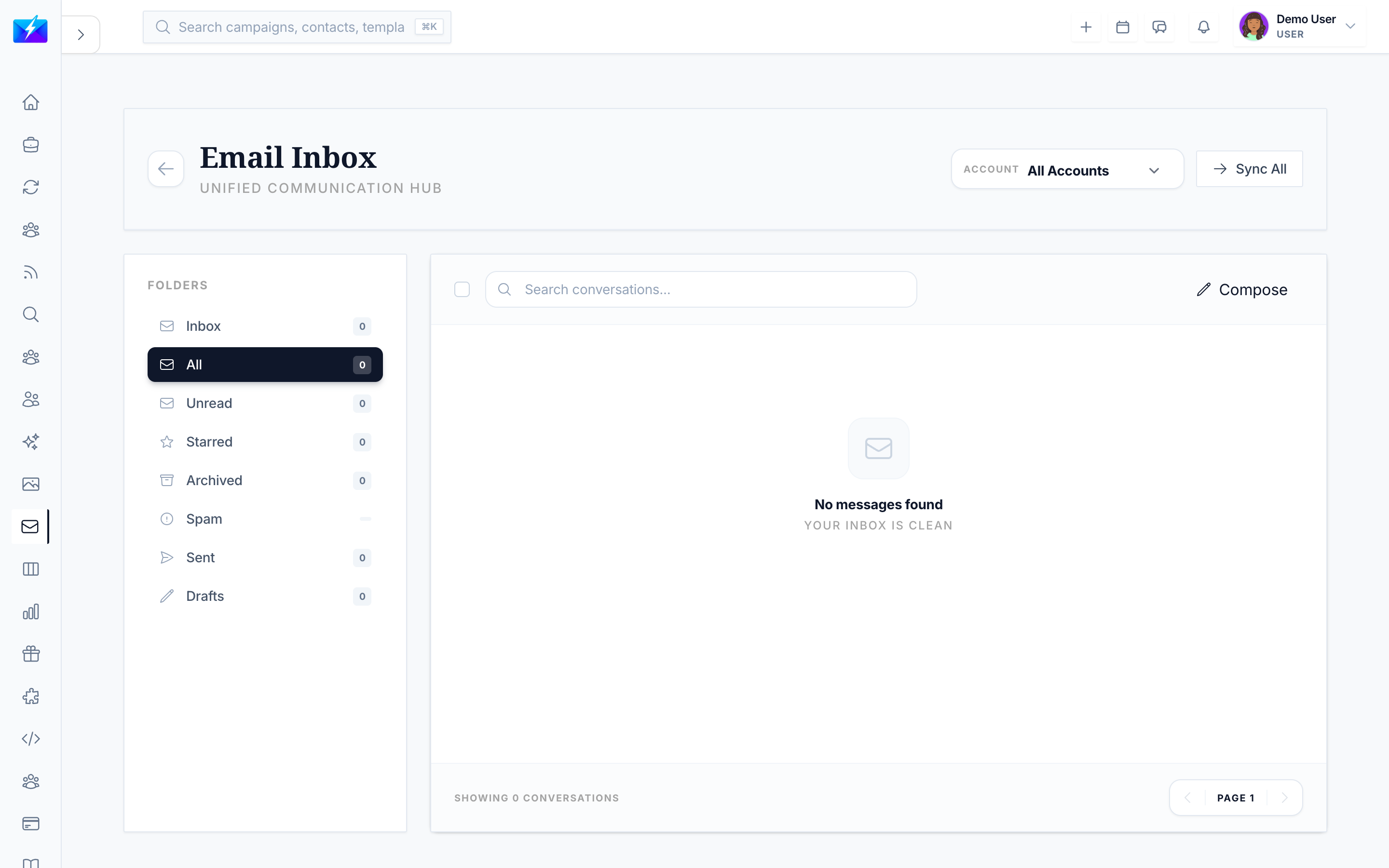
The unified inbox brings every connected account's mail into one view, so you can manage replies to your campaigns without switching tabs.
Inbox layout
- Sidebar folders — Inbox, Unread, Starred, Archived, Spam, Sent, Drafts (each with counts).
- Email list — sender, subject, date, and read/starred/attachment indicators.
- Email view — full content, sender/recipient details, attachments, and thread.
How to manage emails
- Read — click an email; it's marked read automatically.
- Star — mark important messages; find them in Starred.
- Archive — clear the inbox without deleting.
- Delete — permanently remove a message.
- Mark as spam / not spam — improve filtering.
- Bulk actions — select multiple emails to mark, archive, delete, move, or flag as spam.
How to compose, reply, and forward
- Click Compose, fill in To/Cc/Bcc, Subject, and body, attach files, then Send.
- Use Reply, Reply All, or Forward from an open email.
- Drafts auto-save; find and finish them in the Drafts folder.
Search and sync
- Search by sender, subject, content, or date; filter by folder, attachments, and read status.
- Manual sync with the Sync button, or rely on automatic background sync and real-time updates.
- Switch accounts from the dropdown, or view all accounts together.
Best practices
- Check the inbox regularly so campaign replies get timely responses.
- Use stars and archiving to keep the inbox focused.
- Use search instead of scrolling to find past conversations fast.
Frequently Asked Questions
Why aren't my emails loading?
Check the account connection status, click Sync, verify account settings, and confirm your internet connection. Reconnect the account if sync errors persist.Can I see all accounts in one inbox?
Yes — that's the point of the unified inbox. View accounts individually from the dropdown or all together.Where do replies to my campaigns appear?
In the unified inbox, alongside your other mail, so you can respond without leaving OutreachBox.Related articles
One inbox for every account means no campaign reply ever slips through the cracks.
Need more help?
Browse our knowledge base for more guides and tutorials