Automation and AI Agents
How to Create a Lead Generation AI Agent in OutreachBox
Updated June 15, 2026
Quick answer: Open Agents, click New Agent, choose Lead Generation Agent, name it, and configure your target industry, job titles, company size, location, and keywords. Enable it and the agent automatically finds matching leads on a recurring basis — review and export results from its Tasks tab.
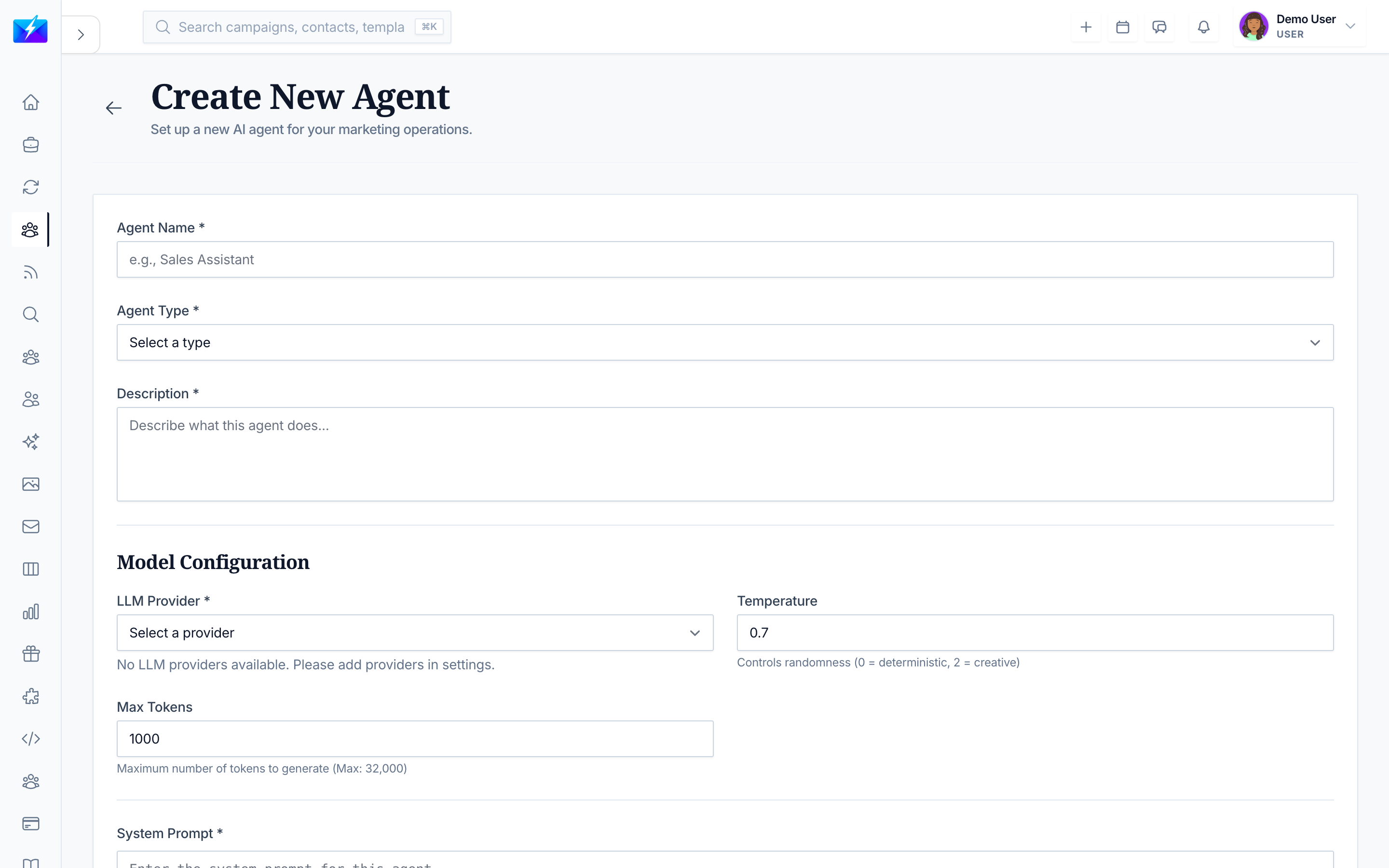
A Lead Generation Agent automates prospecting: define your ideal customer once and the agent keeps finding matching leads so your pipeline never runs dry.
How to create the agent
- Open Agents and click New Agent.
- Select Lead Generation Agent.
- Name it descriptively — e.g., "SaaS CMO Finder".
- Add a description of its purpose.
- Configure the targeting:
| Setting | Example |
|---|---|
| Target industry | Software / SaaS |
| Job titles | CMO, VP Marketing, Marketing Director |
| Company size | 50–500 employees |
| Location | United States |
| Keywords | Include/exclude terms |
- Choose to enable it now.
- Click Create Agent.
How to review the leads it finds
- Open the agent and go to the Tasks tab to see completed runs (e.g., "Found 25 leads").
- Review the results and export them, or add them to contacts and campaigns.
- Check the Performance tab for success rate and run times.
A real-world setup
To feed a sales team 50 leads a week:
- Create a Lead Generation Agent matching your ICP.
- Set it to run weekly.
- Enable it.
- Each week, review results and push them into your CRM or a campaign.
Best practices
- Don't over-restrict filters — too-narrow criteria return zero results.
- Use keywords to include/exclude and sharpen targeting (e.g., exclude "sales" if you want marketing).
- Verify revealed emails before outreach. See How to Verify Email Addresses in Bulk.
- Monitor the agent for the first week, then tune its configuration.
Frequently Asked Questions
The agent is finding the wrong people — how do I fix it?
Refine your filters and keywords. For example, add the required role as a keyword and use exclusions to remove unwanted titles, then save and let it run again.How often can the agent find leads?
Set its schedule (e.g., weekly) so it generates a steady flow of leads automatically.What do I do with the leads it finds?
Review them in the Tasks tab, then save to contacts, organize into groups, verify emails, and add them to a campaign.Related articles
- What Are AI Agents and How to Use Them
- How to Find B2B Leads With Leads Search
- How to Build a Targeted Prospect List
Define your ideal customer once and let the agent keep your pipeline full automatically.
Need more help?
Browse our knowledge base for more guides and tutorials