Automation and AI Agents
How to Automate Tasks With Workflows in OutreachBox
Updated June 15, 2026
Quick answer: Open Workflows, click New Workflow, then start from a template or build from scratch by dragging triggers and action nodes onto the canvas and connecting them. Configure each node, activate the workflow, and it runs automatically on its trigger — manual, scheduled, event, or webhook.
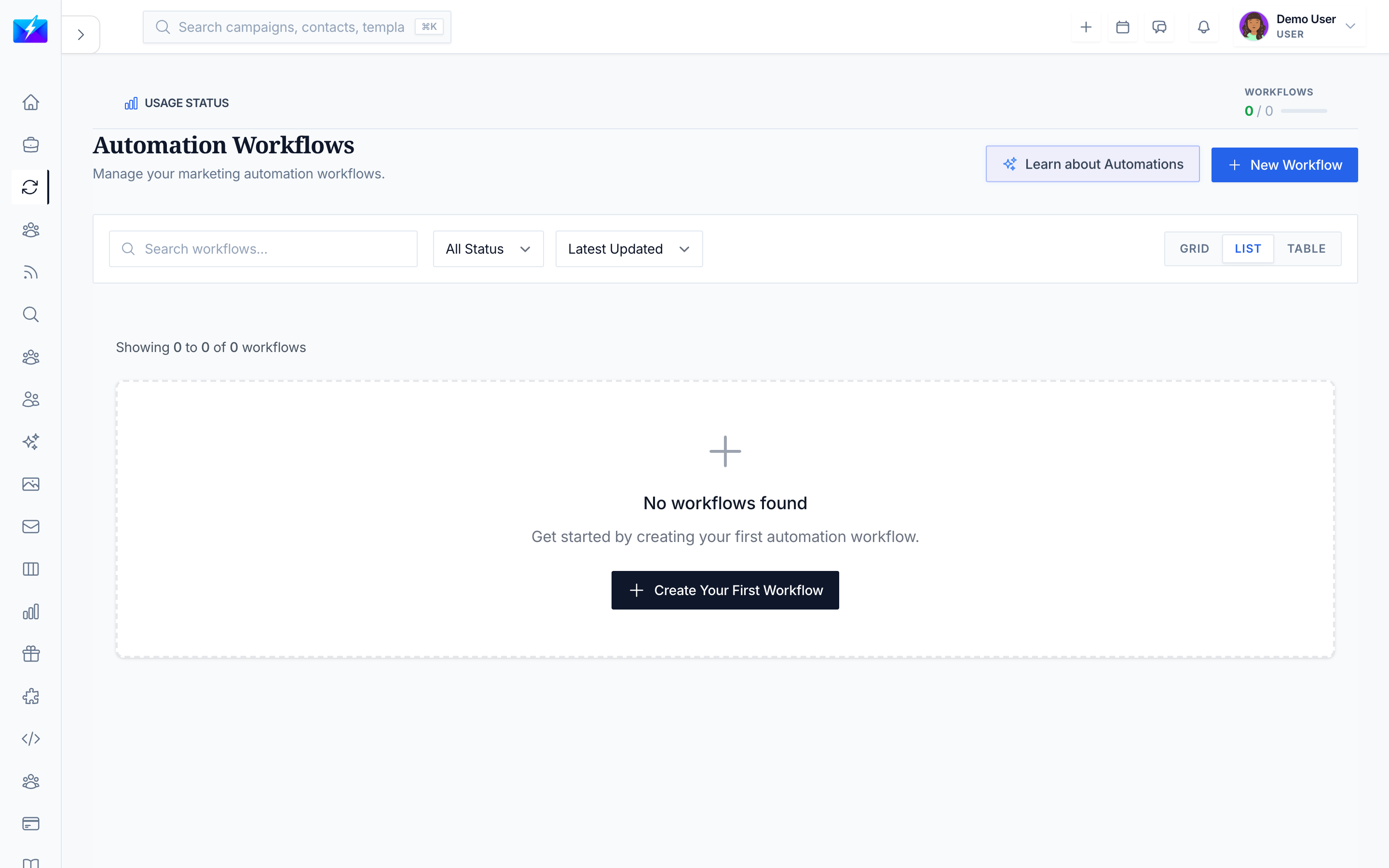
Workflows let you automate multi-step processes by connecting triggers and actions visually — no code required. They're how you turn repetitive sequences into reliable automation.
How to create a workflow
From a template
- Click New Workflow → From Template.
- Browse and select a template (e.g., Welcome Email Sequence, Lead Nurture, Follow-up Campaign).
- Customize and save.
From scratch
- Click New Workflow → Build from Scratch.
- Add triggers and actions, connect the nodes, configure settings, and save.
Building blocks
| Type | Examples |
|---|---|
| Triggers | Manual, Schedule, Event, Webhook |
| Actions | Send Email, Create/Update Contact, Create Campaign, Web Request, Notification |
| Logic | If/Then, Switch, Loop, Merge, Delay, Condition |
Connect a node's output port to another node's input to pass data through the flow.
How to run and monitor workflows
- Manual — open the workflow and click Execute.
- Scheduled — add a Schedule Trigger (daily/weekly/monthly, time, timezone).
- Event-triggered — add an Event Trigger and select the event.
- Activate/Deactivate to turn execution on or off.
- Review the Executions tab for run history, status, duration, and step-by-step data.
Best practices
- Start simple and test before activating.
- Use templates as a head start.
- Add descriptions so teammates understand each workflow.
- Include error-handling nodes and check execution history regularly.
Frequently Asked Questions
What's the difference between workflows and AI agents?
Workflows automate explicit, connected steps you design on a canvas; AI agents autonomously perform a type of task (like finding leads). They complement each other — see What Are AI Agents and How to Use Them.Why isn't my workflow executing?
Confirm it's active, the triggers are configured, and check the execution history for errors and node misconfigurations.Can workflows send emails automatically?
Yes — use the Send Email action, often combined with triggers and conditions. A common use is automated lead nurture. See How to Build a Lead-Nurture Workflow.Related articles
- How to Build a Lead-Nurture Workflow
- What Are AI Agents and How to Use Them
- How to Run a Cold Email Campaign
Drag, connect, activate — workflows turn repetitive sequences into reliable automation.
Need more help?
Browse our knowledge base for more guides and tutorials