Platform and Account
How to Connect Integrations (CRM, Email, Analytics) in OutreachBox
Updated June 15, 2026
Quick answer: Open Integrations (requires the INTEGRATIONVIEW permission), find the service you want — email providers, CRMs like Salesforce or HubSpot, social platforms, or analytics tools — click Connect, authorize access, configure settings, and test the connection. Manage and disconnect services from the same page.
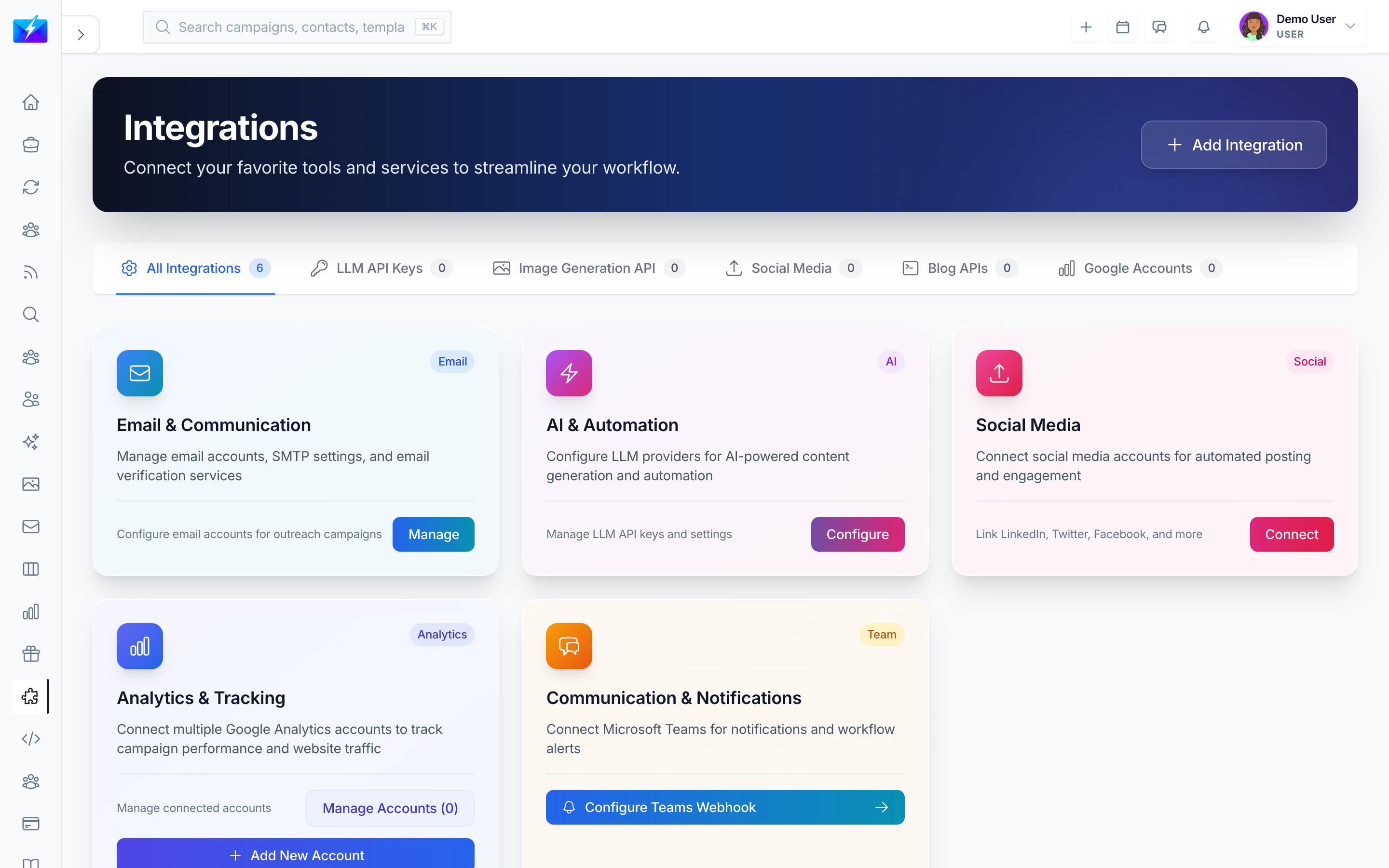
Integrations extend OutreachBox by connecting it to the tools you already use, so data flows between systems instead of living in silos.
Available integrations
| Category | Examples |
|---|---|
| Email providers | Gmail, Outlook, custom IMAP/SMTP |
| CRM systems | Salesforce, HubSpot, custom CRM |
| Social media | Twitter/X, LinkedIn, Facebook |
| Analytics | Google Analytics, custom analytics |
How to connect an integration
- Navigate to Integrations (requires INTEGRATIONVIEW permission).
- Find the integration you want.
- Click Connect.
- Authorize access to the service.
- Configure settings for the integration.
- Test the connection.
How to manage integrations
- View connected services and their status.
- Reconfigure settings as needed.
- Test connections to confirm they're working.
- Disconnect services you no longer use.
Best practices
- Connect only the services you actually need.
- Review the permissions you grant each integration.
- Test connections after setup and after credential changes.
- Keep credentials current to avoid sync failures.
Frequently Asked Questions
Who can manage integrations?
Users with the INTEGRATION_VIEW permission. Control access via roles in Team Members.My integration isn't working — what should I check?
Verify the credentials, confirm any API keys are valid, review error messages, and reconnect the service if needed.How do I connect my email account?
Email accounts are connected under Email → Accounts. See How to Connect an Email Account.Related articles
Connect the tools you already use so your data — and your team — stay in sync.
Need more help?
Browse our knowledge base for more guides and tutorials