Content and Marketing
How to Automate Content Creation With the OutreachBox Auto Generator
Updated June 15, 2026
Quick answer: Open the Auto Generator, click Create New, then set a job name, content type (blog, article, or social), the linked project, keywords, a schedule (daily, weekly, monthly, or custom), and an AI model. Click Create Job and enable it — OutreachBox then generates content automatically on your schedule.
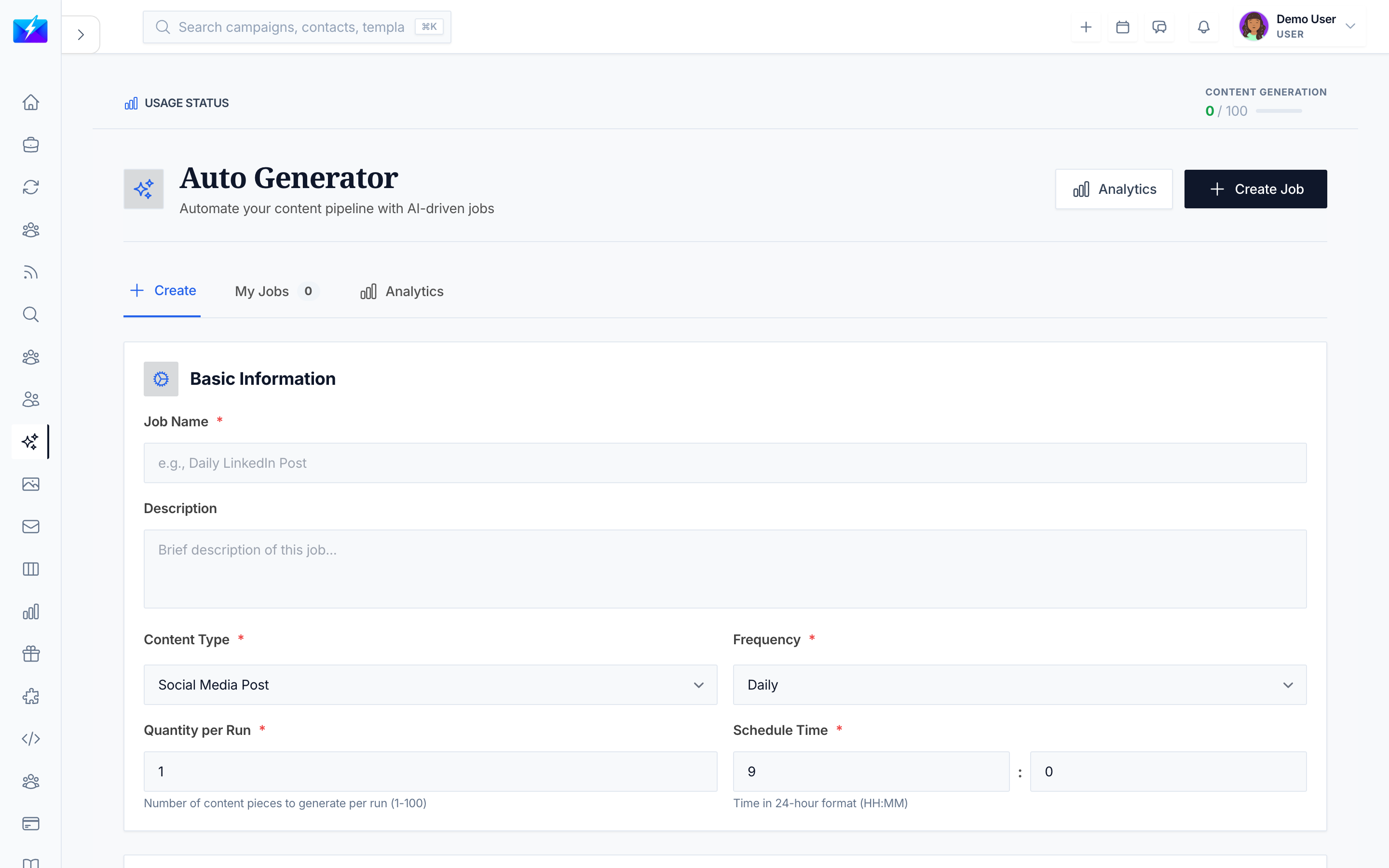
The Auto Generator turns content creation into a set-and-forget system. Configure a job once and OutreachBox produces blogs, articles, or social posts on a recurring schedule, using your project and keywords.
How to create a generation job
- Navigate to the Auto Generator.
- Click the Create New tab.
- Fill in the job details:
- Name — a clear job name.
- Content type — Blog, Article, or Social Media.
- Project — the associated project.
- Keywords — terms to guide generation (or import from the project).
- Schedule — Daily, Weekly, Monthly, or Custom (days, time, timezone).
- LLM configuration — the AI model and settings.
- Click Create Job.
How to manage jobs
- My Jobs lists every job with status, statistics, and next run time.
- Enable/disable a job with its toggle to activate or pause the schedule.
- Edit to change settings or schedule.
- Delete to remove a job.
Job statuses: Active, Paused, Completed, Failed.
How to review generated content and analytics
- Browse generated pieces, then Preview, Edit, Publish, or Delete each.
- Open the Analytics tab to see total generated, success rate, active jobs, and scheduled jobs.
Best practices
- Define clear goals — decide what content you need before scheduling.
- Don't over-schedule; a steady, reviewable cadence beats volume you can't edit.
- Always review generated content before publishing.
- Tie jobs to a project so generation stays on-strategy.
Frequently Asked Questions
What content types can I automate?
Blogs, long-form articles, and social media posts — each generated on the schedule you set.Why isn't my job generating content?
Check that the job is enabled, the schedule and timezone are set correctly, the LLM configuration is valid, and review the error logs for the job.Can I edit content before it publishes?
Yes. Generated pieces appear for review where you can preview, edit, and then publish — they don't have to auto-publish.Related articles
- How to Generate SEO Blog Posts With AI
- How to Build a Content Calendar With OutreachBox
- How to Automate Content Creation With a Content Agent
Configure a job once and keep a consistent publishing cadence on autopilot.
Need more help?
Browse our knowledge base for more guides and tutorials