Collaboration and Team
How to Manage Tasks With the Kanban Board in OutreachBox
Updated June 15, 2026
Quick answer: Open the Board (requires the BOARDVIEW permission) to manage work on a visual kanban board. Create task cards, drag them between columns like To Do, In Progress, and Done, assign them to teammates, set due dates, and add labels — keeping your team's work visible and organized.
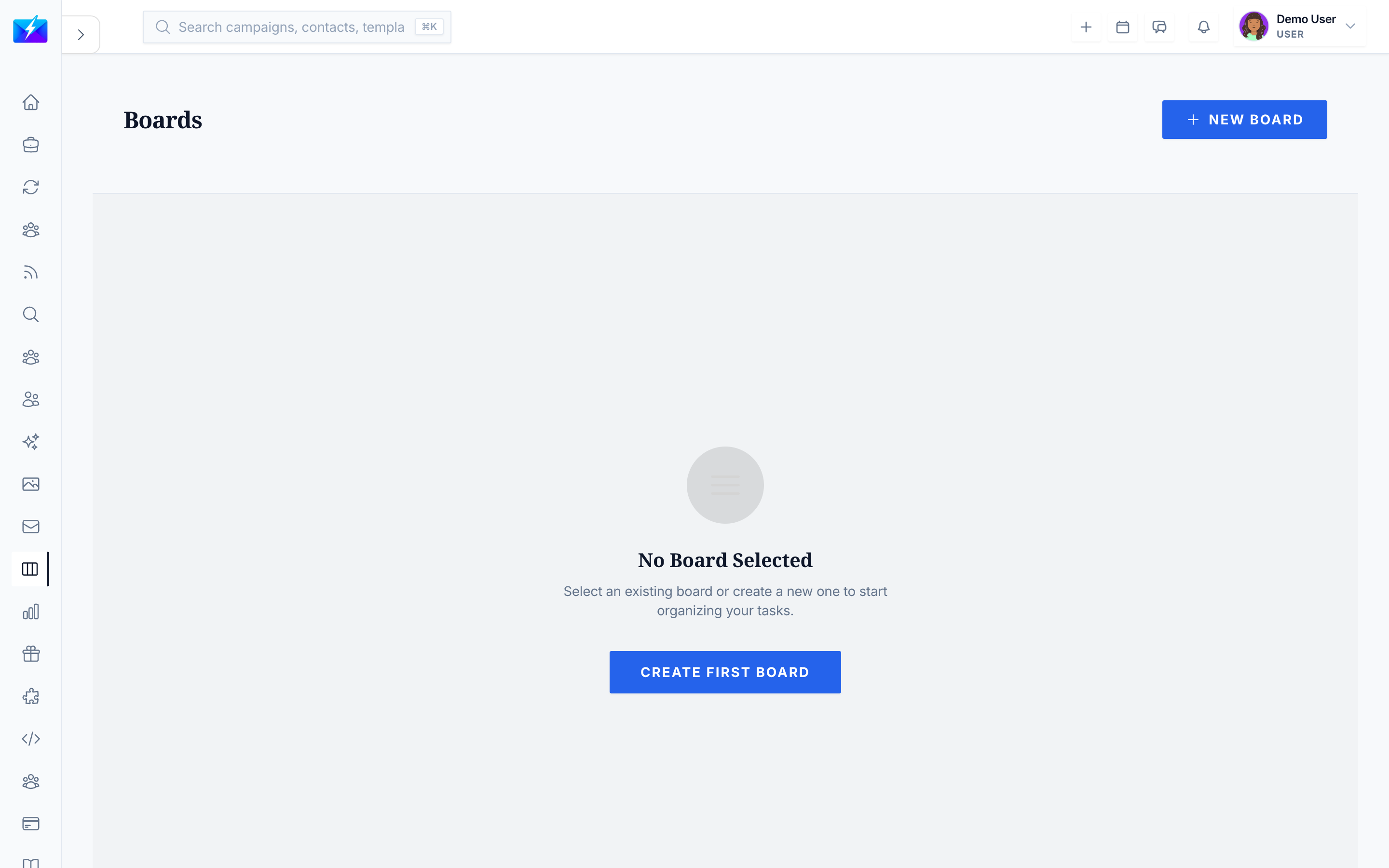
The Board gives your team a shared, visual way to track work — from content production to outreach follow-ups — so nothing falls through the cracks.
How to use the board
- Navigate to Board (requires BOARDVIEW permission).
- Work with columns — To Do, In Progress, Done, plus any custom columns.
- Create task cards with a title, description, assignee, due date, and labels.
- Drag and drop cards between columns as work progresses.
What's on a task card
- Title and description
- Assignee
- Due date
- Labels
- Comments
How it fits your workflow
Pair the Board with other features for end-to-end execution:
- Track content calendar production steps.
- Manage outreach follow-ups.
- Coordinate with team members.
Best practices
- Organize columns around your actual workflow stages.
- Use labels consistently to categorize work.
- Assign every card so ownership is clear.
- Update card status regularly and archive completed work.
Frequently Asked Questions
Who can access the board?
Users with the BOARD_VIEW permission. Manage access via roles in Team Members.Can I add custom columns?
Yes — alongside the default To Do, In Progress, and Done, you can add custom columns to match your workflow.Can I assign tasks to teammates?
Yes — set an assignee on each card so everyone knows who owns what, and add due dates to keep work on schedule.Related articles
Make work visible — cards, columns, and owners keep your team aligned and accountable.
Need more help?
Browse our knowledge base for more guides and tutorials